Home
After starting STpad, the following Home page is displayed:
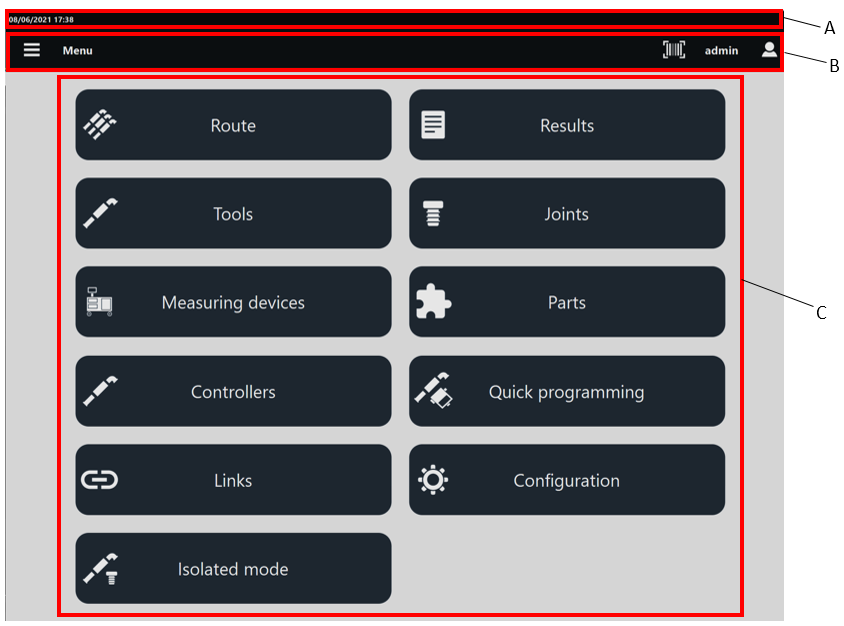
A | Header | B | Toolbar |
C | Available features |
The header provides the following information:
Date and time (
 ): it is associated to the date and time of the operating system.
STbench connection icon (
 ): it is displayed only when the STpad is connected to the STbench.
IRC-Connect connection icon (
 ): it is displayed only when the STpad is connected to the IRC-Connect.
STwrench connection icon (
 ): it is displayed when the STpad is connected to the STwrench.
Battery charge level icon (
 ): it shows the battery charge level of the STpad.
The battery charge level icon includes both a battery icon (filled according to the battery level) and a percentage value (that refers to the battery level in real time).
The toolbar provides the following functionality:
Menu icon (
 ): it lists all of the available features of STpad. The menu icon is always available on the toolbar, regardless of the selected feature.
Barcode button (
 ): allows to scan a barcode to search the corresponding inspection(s) (Tool, Joint or Part inspections) on the measuring device. If the search finds a single inspection, it is automatically run; if the search finds multiple inspections with the same barcode identifier, run the inspection of interest from the list.
The barcode button is displayed only if enabled external software.User/Logout icon (
 ): tap it to select either the user to associate to STpad or to log out.
To logout from the STpad application: tap Logout, then in the User logout window, tap OK. After tapping OK, the main screen with the Login dialog box is displayed.
To get back to Home page, tap Cancel.
Below the Menu items are listed:
Home: it allows to get back to the Home page.
Route: it allows to open the Route page. It is also possible to open the Route page by tapping Route placed in the middle of the Home page (for more information, see Route).
Results: it allows to open the Results page. It is also possible to open the Results page by tapping Results placed in the middle of the Home page (for more information, see Results).
Tools: it allows to open the Tools page. It is also possible to open the Tools page by tapping Tools placed in the middle of the Home page (for more information, see Tools).
Joints: it allows to open the Joints page. It is also possible to open the Joints page by tapping Joints placed in the middle of the Home page (for more information, see Joints).
Measuring devices: it allows to open the Measuring devices page. It is also possible to open the Measuring devices page by tapping Measuring devices placed in the middle of the Home page (for more information, see Measuring devices).
Parts: it allows to open the Parts page. It is also possible to open the Parts page by tapping Parts placed in the middle of the Home page (for more information, see Parts).
Controllers: it allows to open the Controllers page. It is also possible to open the Controllers page by tapping Controllers placed in the middle of the Home page (for more information, see Controllers).
Quick programming: it allows to open the Quick programming page. It is also possible to open the Quick programming page by tapping Quick programming placed in the middle of the Home page (for more information, see Quick programming).
Links: it allows to open the Links page. It is also possible to open the Links page by tapping Links placed in the middle of the Home page (for more information, see Links).
Configuration: it allows to open the Configuration page. It is also possible to open the Configuration page by tapping Configuration placed in the middle of the Home page (for more information, see Configuration).
Isolated mode: it allows to open the Isolated mode page. It is also possible to open the Isolated mode page by tapping Isolated mode placed in the middle of the Home page (for more information, see Isolated mode).









































