Results
The Results section lists the results of the inspections done. By default, the results list is organized by date: the last inspection done is the first item of the list.
The device saves up to 50000 single results. If this amount is exceeded, the oldest results are overwritten by the new ones.
In the Home page, tap Results. The following is displayed:
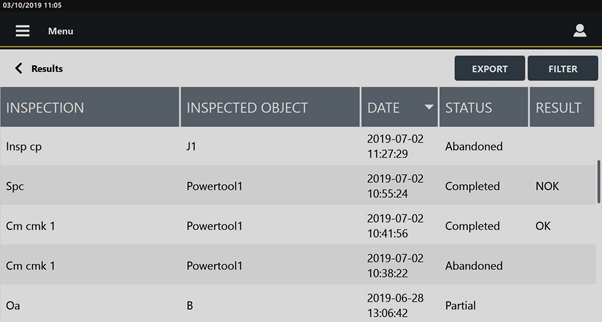
Below are the columns that define the list of results:
Inspection: it is assigned when the inspection is created. For more information, see “Inspections”.
Inspected object: name of the inspected object.
Date: execution date of the inspection. The date format is as follows: yyyy-mm-dd / hh:mm:ss.
Status: status of the inspection. Each inspection has one of the following status:
Partial: in case the number of samples is not completed or equal to 0.
Completed: in case the number of samples is completed.
Abandoned: in case the inspection/tool/joint is deleted or if the parameters that reset the statistics, change.
Result: result of the inspection (OK or NOK).
The inspection ISO 5393 does not give any result. The inspection SPC does not give any result if the ongoing subgroup is not completed.

It is possible to sort the columns that define the list of results either in ascending or descending alphabetical order, according to customer needs. Tap the column to be sorted (for example, Inspection column): the up arrow (placed on the right of the column heading) lists the inspection(s) (or Inspected Object / Status / Result) details in ascending alphabetical order; The down arrow lists the inspection(s) (or Inspected Object / Status / Result) details in descending alphabetical order.
In the Date column, the up arrow lists the inspections from the oldest one to the latest one; The down arrow lists the inspections from the latest one to the oldest one.
It is possible to customize the sequence of the columns that defines the list of results, according to the customer needs. Tap the column heading to be moved (i.e. Inspected Object / Inspection / Date / Status / Result) and drag and drop it in the necessary position.









































