Cannot connect to ToolsNet 8
Cause: There can be a number of different reasons as to why the MTF6000 controller doesn’t connect to ToolsNet 8 but the most common is an incorrect setup of the network settings.
Solution:
Check that the ToolsNet IP address is the same as the ToolsNet 8 server IP address.
Check that the Controller IP address is not the same as the ToolsNet IP address.
Check that the Controller IP address is unique.
Check that the Subnet mask is correct.
Check that the Gateway IP address is correct.
Check that the ToolsNet port is correct. ToolsNet 8 is using port 6700 as default for MTF6000.
Check that the controller and ToolsNet 8 server is on the same network.
To test this:
Open the command prompt (press windows start -> enter “cmd”).
Write “ping xxx.xxx.xxx.xxx” (where xxx.xxx.xxx.xxx is the controller IP address).
Check for the response.
Write “ping yyy.yyy.yyy.yyy” (where yyy.yyy.yyy.yyy is the ToolsNet server IP address).
Check for the response.
The following response shows an example of successful access:
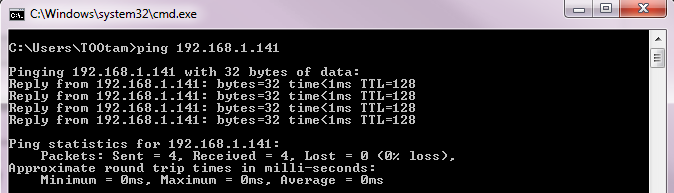
If both the controller and the ToolsNet server can be accessed, the issue is not in the network settings but rather in the services of ToolsNet 8.
The following services must be running for ToolsNet 8 to be able to communicate with the MTF6000:
License server
Data collection service
Protocol interface module
Internet information services
Data communication services
This response is shown if the controller cannot be accessed:

If the controller cannot be accessed it is an issue in the network setup.
Check again that the controller is connected to the same network as the ToolsNet 8 server and that the IP, mask and gateway are correct.









































