Calibrating generic controllers
Connect the system (for more information, see STbench Operation Manual / STpad Operation Manual – Operation - Calibrating generic controllers - General Information).
Switch on both the device and the generic controller.
On the device, configure the generic controller (for more information, see Controllers).
After configuring the generic controller, configure the tool to calibrate (for more information, see Adding a Tool).
After configuring the tool to calibrate, configure the calibration inspection (for more information, see Adding a Tool inspection).
At the end of the configuration of the calibration inspection, the following is displayed:

A
Play
Tap Play to run the inspection.
At the end of the calibration inspection, the following is displayed:

A
Calibration inspection Toolbar
On the Calibration inspection Toolbar, the Results page shows a plot with all the results of the inspection (on the right side), and the list of the results of the inspection (on the left side).
On the Calibration inspection Toolbar, tap Summary to display the following page:
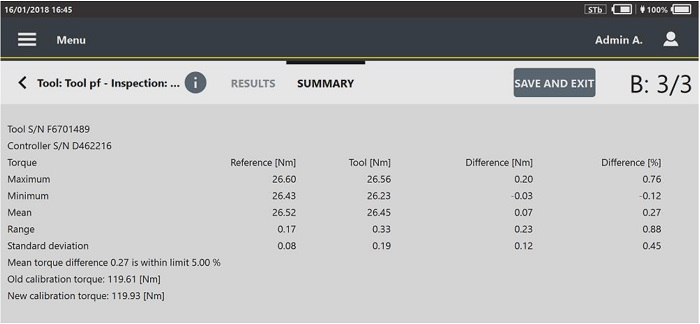
Tap Save and Exit, then save the new calibration value on the tool calibrated.

If during the calibration process the internet connection is unstable, a dialog box is displayed and it is possible to insert the controller result manually.
At the end of the calibration procedure, a dialog box is displayed. Tap Report to create a copy of the calibration report on an external device (i.e. USB storage device), or tap Close to exit.
The calibration report can be generated also from the Results. For more information see "Viewing the details of the inspection result".
If a label printer is configured, a dialog box asking to confirm the printing of the label is displayed.









































