Viewing the details of the inspection result
In the Results page, click the inspection to view. The Result details page opens:
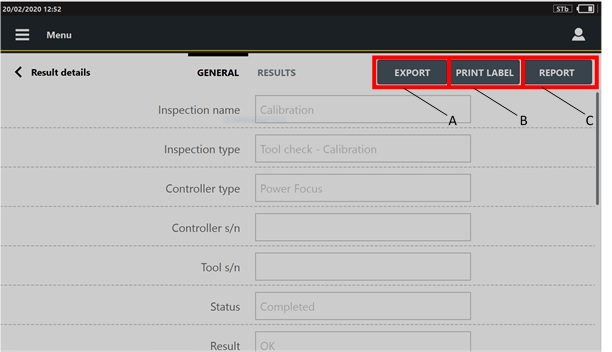
A | Export button | B | Print label button |
C | Report button |
On the upper-right corner of the Results details page, the Export button allows to export the result details of the selected inspection on an external device.

In the Result details page of Visual check - Instructions and Visual check - Picture inspections, the Export button is not displayed.
On the upper-right corner of the Result details page, the Print label button is displayed for the completed Cm/Cmk ISO, SPC tool check, CAM/Cpk CNOMO, ISO 6789:2003 inspections, and tool calibrations.
On the upper-right corner of the Result details page, the Report button is displayed for the completed Cm/Cmk ISO, CAM/Cpk CNOMO and tool calibrations.
The General category is a read-only page that lists the parameters of the selected inspection. The parameters change depending on the inspection selected in the Results page.
The Results category lists the single results done during the inspection. The first column of the Result details page displays the index of the results. If a result is NOK, the related value is highlighted with a red colored bar.
If during the test run a measurement is deleted or is not detected, it is deleted from the Measure page, but it is displayed in the Results category.
Not detected measurements are marked with a dash.
Deleted measurements are grayed out.
Measurements not detected and deleted are marked with a dash and are grayed out.
Tap a single value to open the Measure page, where the general information of the test are displayed.
In the Trace category, the acquired trace is shown.
If the trace has not been acquired, the Trace category is not displayed.
In the Photo category the photo saved during test run are shown.
In the Traceability tag category, the used traceability tags, assignable causes, corrective actions and comments added during the test run are shown.









































